Internet Basics
Learn how to browse the web, send emails, and use the internet safely — step by step, no jargon, at your own pace.
Browsing & Email Videos
Watch these short, friendly videos to learn how the internet works and how to use email.

Introduction to the Internet: A Beginner's Guide for Seniors
A warm, welcoming introduction to the internet — perfect for someone going online for the very first time.
Internet Basics for Seniors
Covers browsers, websites, URLs, bookmarks, and browsing history — all in simple terms.

BiteSize Basics: Introduction to the Internet
Short, bite-sized digital skills session from AbilityNet — designed specifically for older adults.

Guy's Guides: Beginner Basics of Google Chrome
Learn Google Chrome — the world's most popular browser — from the very beginning.
Introduction to Gmail: Beginner Course for Seniors
Your first Gmail lesson — set up your account and send your very first email.
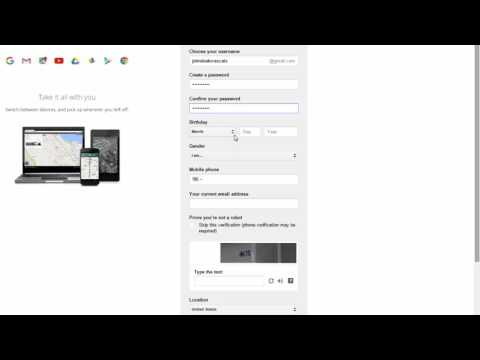
How to Set Up a Gmail & Google Account
Step-by-step account creation — takes about 5 minutes and gives you access to Google's free tools.
Tech Skills for Older Adults: Emailing with Gmail
Composed and sent your first email? Now learn to reply, forward, and attach photos.

Guy's Guides: How to Send a Photo via Email
Share your memories — learn to attach and send photos by email on both desktop and mobile.
Your Internet Starter Guide
No jargon. No rushing. Just clear explanations you can read at your own pace.
What Is the Internet?
Think of the internet as a giant library that lives inside your phone, tablet, or computer. Instead of books, it holds billions of pages filled with information, videos, photos, shopping, and ways to talk to people you love — available 24 hours a day, for free.
When you connect to the internet, you can look up anything (like a symptom, a recipe, or old friends), watch videos, send messages, shop from home, and video call your family anywhere in the world.
Understanding Your Web Browser
A web browser is the app you use to visit websites. Think of it like a car — it takes you wherever you want to go on the internet. You don't need to know how it works to use it.
- Google Chrome — a colorful circle icon (red, yellow, green, blue). Very popular on Android phones and computers.
- Safari — a compass icon. Built into every iPhone and iPad.
- Microsoft Edge — a blue wave icon. Built into Windows computers.
To visit a website, tap on the long bar at the top of the browser (called the address bar) and type what you're looking for — or just type a question into Google.
How to Search for Anything (Using Google)
Google is the world's most popular search engine. It's like asking a very knowledgeable friend any question and getting an instant answer.
- Open your browser and tap the address bar at the top
- Type your question in plain English — for example: "what time does CVS close" or "easy soup recipes"
- Press Enter or tap Go
- A list of answers appears — tap any blue link to read more
Tip: You don't need to type perfect sentences. Short phrases work just as well.
Understanding Email
Email is like sending a letter — except it arrives in seconds, anywhere in the world, completely free. You can send messages, photos, and documents to family and friends.
- Every email address has an @ symbol — for example: yourname@gmail.com
- Gmail (by Google) is the most popular free email — recommended for beginners
- You can reply to an email by pressing the "Reply" button — no need to re-type the address
- You can attach photos so family can see your pictures
Watch the Gmail videos above to get started — it takes about 5 minutes to set up your first free email account.
Staying Safe While Browsing
Most websites are completely safe. But a few aren't — and knowing the difference protects you.
- Look for the padlock icon 🔒 and "https://" at the start of any address — this means the site is secure
- If a website asks for your Social Security number or bank details unexpectedly — close it immediately
- Pop-ups that say "Your computer has a virus! Call this number!" are almost always scams — close them without clicking anything
- Stick to well-known websites: Amazon, WebMD, AARP, your bank's official site
For a full safety guide, visit our Cyber Safety page.
Common Internet Words — Plain English
- Website — a page on the internet, like a store or a newspaper
- URL / Web address — the unique address of a website (e.g., www.google.com)
- Link — a word or picture you can click to go to another page (usually blue and underlined)
- Password — a secret code that protects your accounts — never share it
- Wi-Fi — wireless internet connection, usually available at home and many public places
- Download — saving something from the internet onto your device (a photo, app, or document)
- Log in / Sign in — entering your email and password to access an account